Stop making your shot list in Excel (or Notion, or Milanote)
A spreadsheet is the fastest way to type a shot list, and the worst place to keep one. Five things a video needs that a grid can't give it, what you keep when you move, and why typing the whole plan is now faster in a dedicated app than in the sheet.
Let's be honest about the spreadsheet first. It is the fastest way there is to type a list. You open it, you write a row per shot, you drag the numbers down, and in ten minutes you have a shot list that any phone can open. That is why yours is in Excel, or Google Sheets, or a Notion table, or pinned next to the pictures in Milanote.
The problem is not typing. The problem is everything a video asks of the list after you type it. A grid was built for numbers that stay still. A video is a line of seconds, and your list has to live on it.
Five things a grid can't give a video
1. Time
A row doesn't know how long the shot lasts, or where it falls in the video. "Wide of the street" is a fine row. Is it the quiet opening or the moment the music kicks in? That decides how you film it: still and long, or moving and short. And nothing in a sheet tells you whether the shots in a section add up to the length of the section. You find out in the edit, with twelve seconds of music and nothing to put on them.
The fix on paper is three more columns: the guide on shot lists and timelines explains them, and the free shot list maker adds them up for you. The real fix is a list that is drawn on the video's clock.
2. The picture
A shot is an image before it is a sentence. In Milanote you have the pictures, beautifully arranged, and no list with seconds. In Notion you have the list, and the reference lives on another page, or in a gallery you scroll past. In Excel it lives in a folder. On the day, you want the picture next to the row it belongs to, and in the printout.
3. The day of the shoot
A spreadsheet on a phone at seven in the morning is a grid of tiny cells. No thumbnail to glance at. No box to tick. Nothing that says this shot needs the low sun and has a window of forty minutes. The list that works on the day is printed, one shot per row, with a picture, the camera and lens, the exact seconds and a place to write.
4. The editor
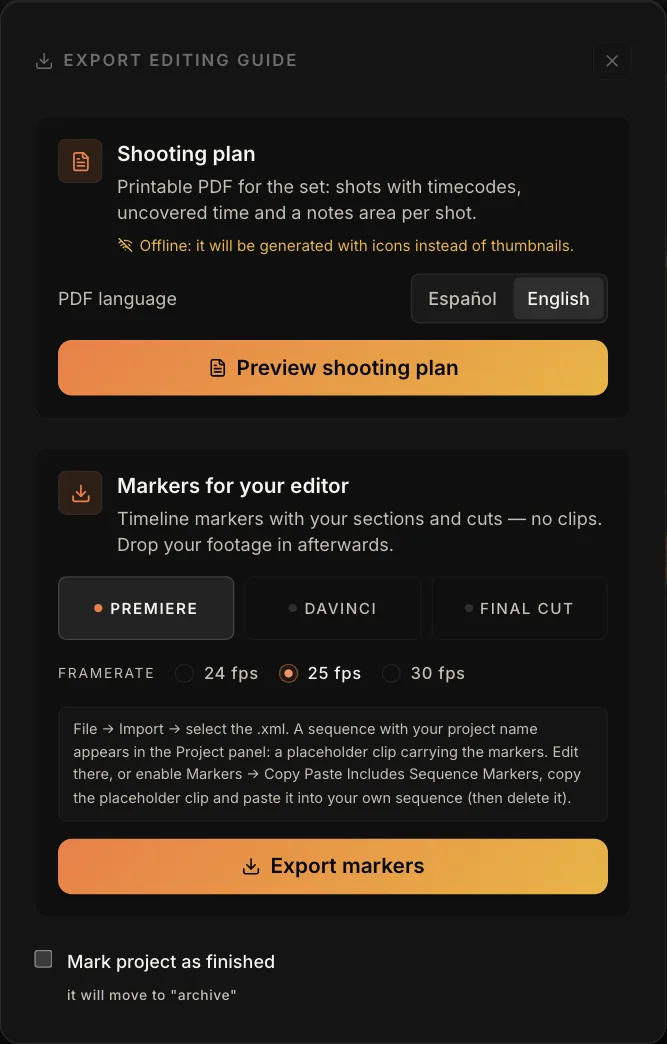
When the shoot is done, the plan is still useful: the sections and the shots are the markers your editor needs on the timeline. What a sheet can hand over is a column of numbers to retype by hand. Markers can travel as a file, and that only works if the list already knows the seconds.
5. The next project
Every filmmaker has twenty shots they keep coming back to. In a spreadsheet each project starts from a blank grid and you type them again. A list that remembers your shots, and the camera and lens you use for each, starts the next video from what you already know.
What you keep when you move
Everything that matters. Your columns are still there: the name of the shot, its size, the camera and lens, the note, the reference picture. Nobody is asking you to learn a new way of thinking about a shot list, only to stop keeping it in a container that can't hear the video.
The one thing the sheet had left: speed. Not any more
Be fair to the spreadsheet: the reason people go back to it is that typing rows is fast, and dragging cards around in a planning app is slow. For years that was true. So we timed it.
The test was the same in every tool: a two-minute video, five sections with their names, twenty shots with their names, every keystroke and click counted.
| Time to a full plan | |
|---|---|
| Spreadsheet | 146 seconds |
| PreFrame, one shot at a time | 233 seconds |
| PreFrame, creating in bulk | 110 seconds |
Creating in bulk is three questions: how many sections, how many shots in each, how long is the video. The whole structure is laid out at once, the length shared out between the sections and the shots, each one already on its seconds, with a name waiting to be typed over. You can change a section's length or its number of shots in the table before you create, or afterwards. Then you type the names, exactly as you would in the sheet, and you are done faster than the sheet, with a plan that knows the time.
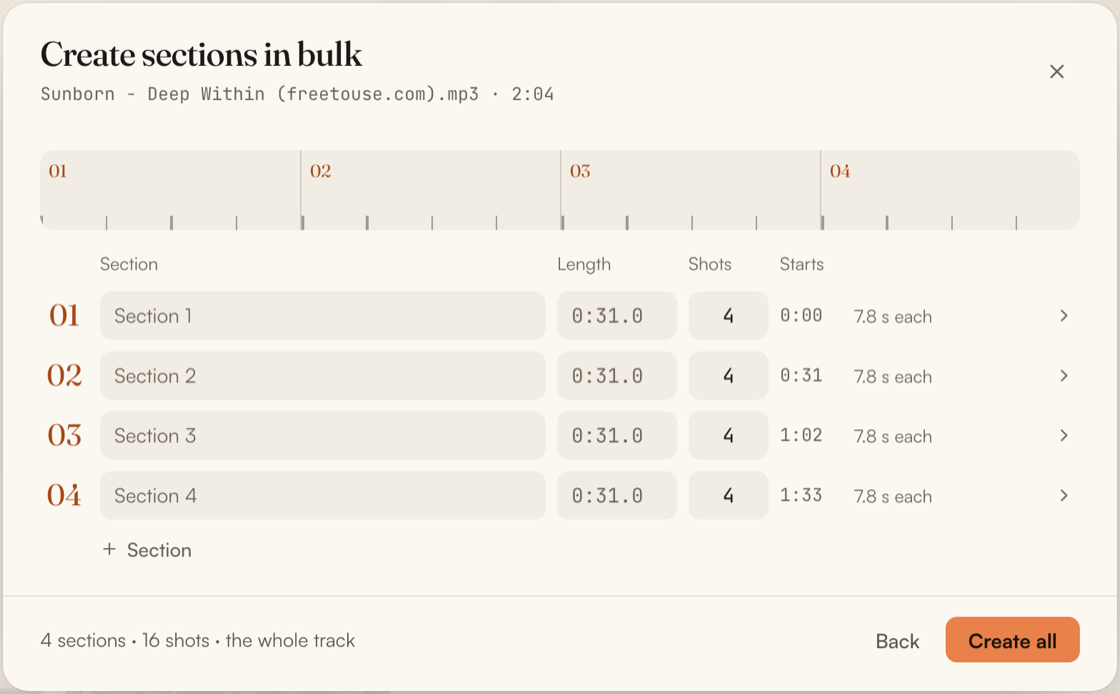
What those 110 seconds buy you is not just the list. It is the list with its seconds, over the song or over the emotional curve, ready for the pictures, the gear and the notes. The spreadsheet's 146 seconds buy you a grid.
The same thing in PreFrame
The list is drawn on the song, or on the emotional curve when there is no song yet. Sections are cut on it, and every shot sits inside its section with its seconds, its size, its camera and lens, its note and its picture.
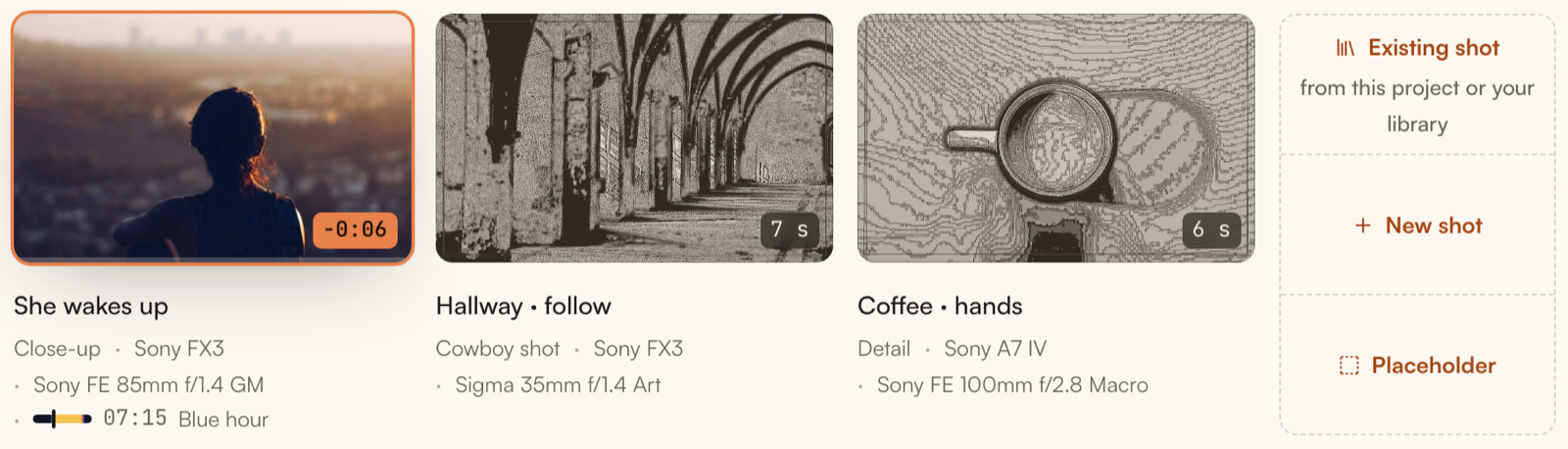
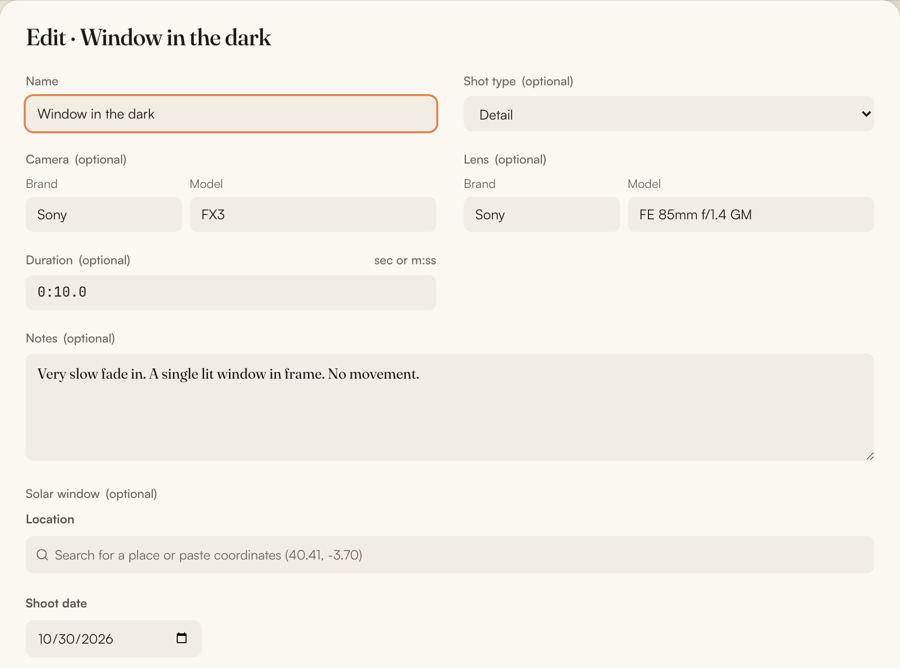
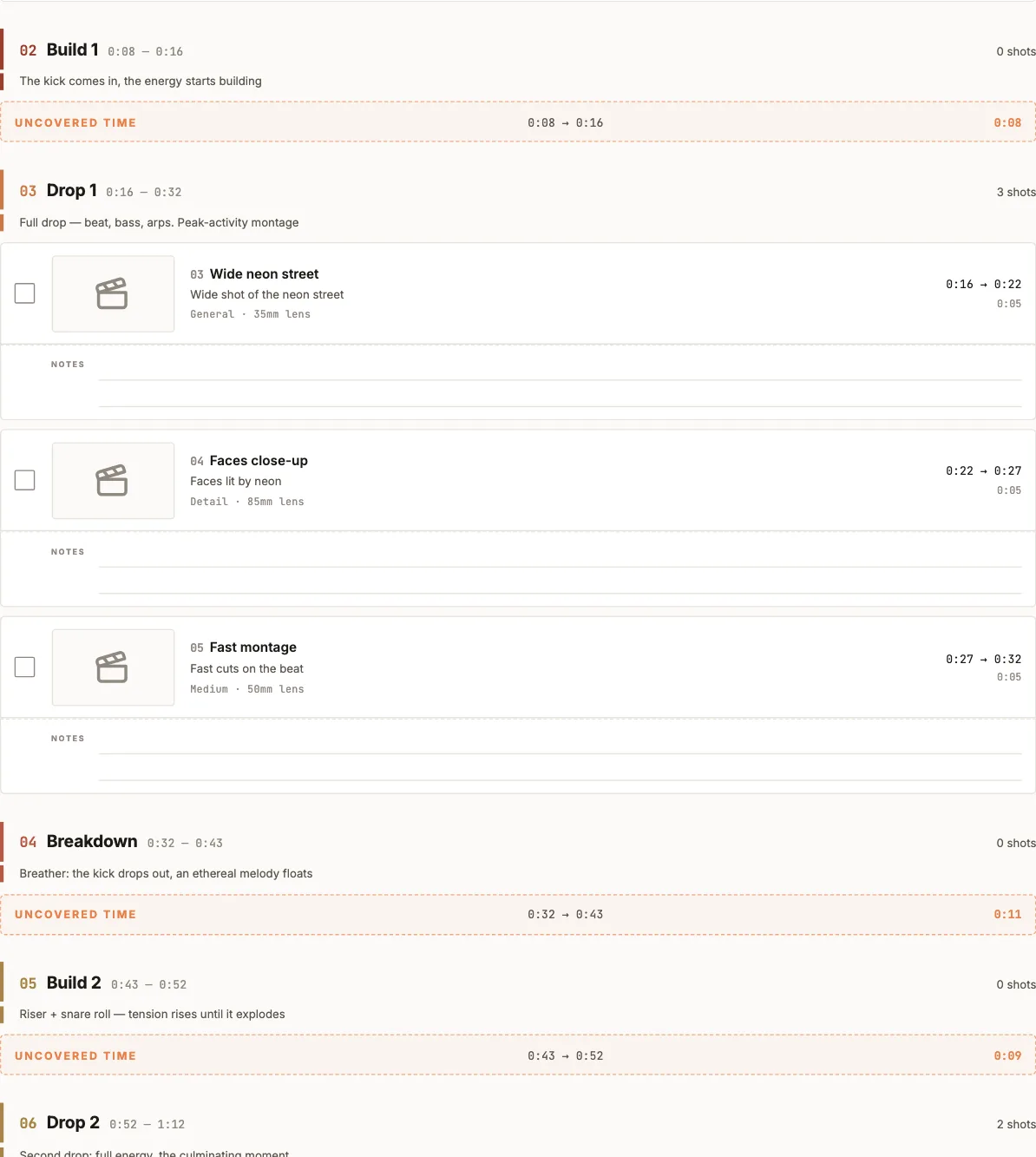
The printed plan has a thumbnail per shot, a box to tick, the gear, the exact seconds and the seconds nobody has planned yet, printed where they fall. The markers go to Premiere, DaVinci Resolve or Final Cut as a file. Your shots and your gear are kept in a library for the next project. How the export and the library work is explained in support.
If you want to see how a list like this is built from scratch, how to make a shot list walks through a two-minute example.